Your Child’s First Smartphone in 2026: AI, Safety Settings and Rules That Actually Work

Quick answer: The right first phone isn’t about the brand—it’s about preparation. Set safety controls on day one, have clear rules you can explain, and treat it as a shared responsibility, not just a purchase.
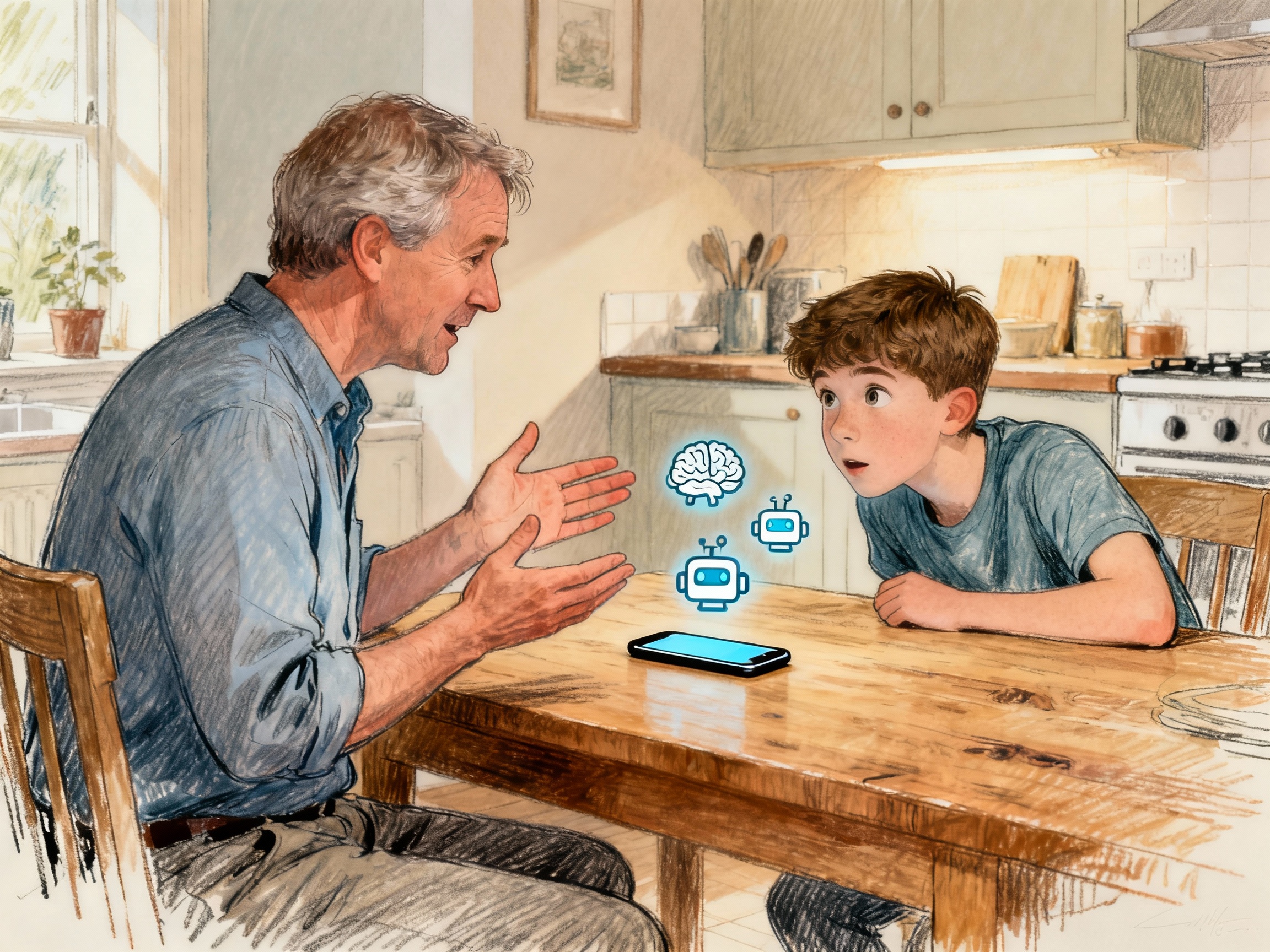
For today’s UK parents, giving a child their first smartphone is a milestone that often arrives between ages 9 and 11, coinciding with the transition to secondary school. But unlike previous generations, today’s first phones don’t just connect to calls and texts—they contain AI assistants, camera technology, gaming platforms, and full access to social media. Without a plan, you risk handing a child all that power without the maturity to use it safely.
This guide walks you step-by-step through readiness, device choice, setup, safety settings, AI controls, and family rules that actually work in real life. Whether you’re giving your child their first phone this Christmas or planning for next year, this article covers everything parents need to know.
Section 1: Is Your Child Actually Ready? (Age, Maturity & Timing)

There is no single “right age” to give a child a smartphone. Research from the University of Birmingham, Ofcom, and NSPCC guidance all confirm that maturity matters far more than age. However, data can help frame the decision.
What Does the Data Say?
- Average age in the UK: Most children (91%) have a smartphone by age 11. Phone ownership jumps from 44% at age 9 to 91% by age 11, typically around the time they start secondary school.
- Younger children: 24% of 5–7 year olds already have a smartphone, though NSPCC guidance recommends against personal devices for this age.
- Screen time reality: UK children aged 5–10 use screens for 6.4 hours daily on average—more than 4 times WHO recommendations. Children aged 11–16 use screens for 5.1 hours daily.
These statistics show that phones are becoming normalised earlier, but that doesn’t mean your child needs one just yet—or that giving one earlier will help them.
Maturity Markers: Five Questions to Ask
Rather than relying on age alone, assess whether your child shows these signs of readiness:
- Do they follow offline rules consistently? If they struggle with bedtime, screen time on tablets, or homework rules at home, adding a smartphone will make those battles worse, not better. They need to prove they can manage boundaries first.
- Can they handle “no” without a meltdown? A child who explodes when told they can’t download an app, can’t message at 11 PM, or can’t buy in-app currency is not ready. Phones multiply these pressure points.
- Do they come to you with problems? Early adolescence is when children start hiding things from parents. A child who still talks to you about friendship drama, confusing things they’ve seen online, or social pressure is more ready than one who is already secretive.
- Can they understand cause and effect? Do they grasp that posting something online is permanent? That a deleted message might be screenshot? That someone could be pretending to be their age online? Genuine understanding of risk, not just parroting rules, matters.
- Are they asking for it because they actually need it, or because everyone else has one? “I need it to contact you on the walk home” is different from “I need it so I can be in the group chat.” Both are honest answers, but only the first suggests genuine readiness.
Starting Smaller: The Bridge Device Option
If your child is in that grey zone—interested in a phone but not quite ready—consider a “bridge” device first. EE, Google, and other providers now offer:
- Feature phones: Can call and text but cannot access social media, the web, or inappropriate content. Popular models include the EE Dash+ (around £100–150). These give independence and contact without full internet access.
- Kids’ smartwatches: Devices like the Xplora X6 or similar allow calling, messaging trusted contacts, and location sharing without gaming or social media. Perfect for ages 6–10.
- Tablets with heavy restrictions: A shared family iPad with parental controls strictly enforced. No SIM card, WiFi only, very limited apps.
These options let children build phone responsibility gradually. Many parents find a bridge device prevents arguments and buys time until genuine readiness arrives.
Section 2: The Device Choice – iPhone vs Android (And What Matters for Family Safety)

Both iPhone (iOS) and Android can be made equally safe for children. The choice comes down to your budget, existing family ecosystem, and how hands-on you want to be with settings.
iPhone: Simplicity and Longevity
Best for: Parents who want an all-in-one system, or families already using Apple devices.
Strengths:
- Screen Time parental controls are built-in and very intuitive—all managed from your own iPhone or iPad.
- Family Sharing ecosystem is seamless: purchases, app approvals, location sharing, and device limits all link to your family account.
- Devices get iOS updates for 5–7 years, meaning security patches and features remain current far longer than most Android phones.
- Less variability: all iPhones run the same OS, so settings and features are predictable across the family.
- Hardware-level security features make it harder for children (or hackers) to bypass parental controls.
Weaknesses:
- Cost: new iPhones start around £600+. Older models (iPhone 12 or later) remain pricey even second-hand.
- Tech-savvy teens can still circumvent Screen Time if they know or guess your passcode.
- Less flexible: you cannot customize the interface or swap apps the way you can on Android.
Best budget option: An iPhone 11 or 12 (often available second-hand for £250–400). These still receive updates through 2027–2028 and run new software reliably.
Android: Flexibility and Budget Options
Best for: Budget-conscious parents or those who want more customization.
Strengths:
- Wide price range: quality Android phones available from £150–600. Samsung Galaxy A-series and Google Pixel A-series offer excellent parental controls at mid-range prices.
- Google Family Link offers robust parental controls, app approvals, location sharing, and bedtime scheduling—often simpler to set up than people expect.
- Recent Android devices (Android 9+) include Digital Wellbeing: built-in app timers, bedtime mode, and focus mode.
- Customizable: you can adjust the interface, home screen, and available features more than with iPhone.
- Better right-to-repair: parts are cheaper, and third-party repair shops are more common.
Weaknesses:
- Update fragmentation: older Android devices stop receiving security updates after 2–3 years. A budget Android phone from 2022 might already be vulnerable by 2025.
- More complexity: settings menus vary between manufacturers (Samsung vs. Google vs. OnePlus). This can overwhelm non-technical parents.
- Family Link is transparent in a way that some parents prefer but others find intrusive—your child can see all the monitoring happening.
- Tech-savvy teens can enable developer options or rooted access to bypass Family Link.
Best budget option: Samsung Galaxy A15 (around £150–200) or Google Pixel 6a (around £250–300, sometimes discounted). Both come with guaranteed updates for at least 3 years and reliable parental controls.
Quick Comparison Table
| Feature |
iPhone |
Android |
| Budget |
£600+ new; £250–400 second-hand (iPhone 11/12) |
£150–300 new; often better value for budget-conscious |
| Built-in Parental Controls |
Screen Time (excellent; family-wide) |
Digital Wellbeing + Family Link (excellent; more setup) |
| Update Support |
5–7 years (major advantage) |
3–4 years if you buy recent models; older phones lose support faster |
| Ecosystem Integration |
Seamless if you use Apple devices |
Seamless if you use Google/Android |
| AI Features |
Siri, on-device AI in Photos, writing tools (increasing in iOS 18+) |
Google Assistant, Gemini, suggested replies, summaries (deeply integrated) |
| Difficulty to Bypass Controls |
Hard (closed system) |
Medium (tech-savvy teens can jailbreak/root) |
| Best for Non-Tech Parents |
Yes—simpler setup, everything in one place |
Medium—requires learning Android menus and Family Link app |
Device Choice by Age & Budget
- Ages 8–10, limited budget (under £200): Android (Samsung Galaxy A15 or similar). Skip iPhone unless you can afford a discounted refurbished iPhone 12.
- Ages 8–10, flexible budget: iPhone 12 or later (5–7 year lifespan justifies cost).
- Ages 11–13, budget under £300: Android with guaranteed 3+ year updates (Google Pixel A-series or Samsung Galaxy A).
- Ages 11–13, flexible budget: iPhone 13 or later for simplicity and long-term support.
- Ages 14+: Let your teen have input on the choice (within your budget). Both platforms work well; their preference and peer ecosystem matter.
Section 3: Define the Purpose (Before You Buy)
Before you spend money or set up controls, get crystal clear on why your child needs a phone right now. This decision directly shapes which rules you set and how strictly you enforce them.
Write Down Your Actual Reasons
- Safety and logistics: “I need to reach them reliably when they walk home or go to activities. They’re becoming independent but I want emergency contact.”
- Social belonging: “All their school friends are in a group chat and they feel left out. They’re starting secondary school and need to coordinate meetups.”
- Learning: “Their school uses Google Classroom. They need a device to check homework and submit work from home.”
- Gaming with friends: “They want to play Fortnite or Roblox with classmates. It’s how their social life works.”
- Creative interest: “They want to make YouTube videos or TikTok content. It’s a genuine creative interest, not just consumption.”
- Pressure/marketing: “Honestly, it’s because everyone else has one and I got tired of saying no.”
All these answers are legitimate. What matters is that you’re honest about it. Parents who say “it’s about safety” when it’s really “it’s about keeping up with peers” often set rules they can’t enforce because the actual need is different.
Use Your Purpose to Set Rules
Write your phone’s purpose on a Post-it and put it on the fridge. Later, when you’re deciding whether they can download TikTok or play online games, this purpose statement becomes your anchor. Example:
“Our purpose: contact, homework, and safe connection to school friends. Purpose: NOT gaming or streaming.”
This isn’t authoritarian—it’s clarity. A child who knows the phone exists for homework and contact is less likely to fight you about notifications being off at bedtime.
Section 4: Set Up the Phone BEFORE Your Child Touches It (Day One Matters)
The first 24 hours with a new phone set the pattern for years. Taking one evening to configure things properly is one of the most protective steps you can take. This section includes exact step-by-step instructions.
iPhone Setup (5 Steps to Safe Ownership)
Step 1: Create the Right Account
Go to Settings → Family Sharing → Add Child. Create an Apple ID specifically for your child using:
- Their real first and last name (so age-appropriate filters apply).
- Their real birth date (critical for automatic age-based protections).
- An email you control (their [email protected] or similar)—you set the password.
- Your phone number for recovery (not theirs).
Do NOT use your own Apple ID for their device. Creating a child account means Apple automatically applies stricter content filtering and parental controls.
Step 2: Enable Screen Time (Parental Controls)
Settings → Screen Time → This is My Child’s iPhone. Now configure:
- Set Downtime: Settings → Screen Time → Downtime. Choose hours when only calls and messages work—typically 8 PM to 8 AM on school nights, 11 PM to 7 AM on weekends. During downtime, apps are greyed out except phone, messages, and FaceTime.
- Set App Limits: Settings → Screen Time → App Limits. Set daily time limits per category: Games (1 hour/day suggested), Social Media (30–60 mins/day), Entertainment (1 hour/day). When the limit expires, the app asks for more time, which goes to you for approval. You see a notification.
- Communication Limits: Settings → Screen Time → Communication → During Screen Time: Only Contacts, During Downtime: None. This means they can only call/message people in their contacts during downtime, and nobody can reach them during bedtime.
- Content & Privacy Restrictions: Settings → Screen Time → Content & Privacy Restrictions (toggle on). This blocks explicit music, books, films, and apps based on age rating. Set to “restrict apps” if they’re under 12.
- Create a Screen Time Passcode: Set a 6-digit passcode separate from your Apple ID password. Write it down somewhere safe (not on your phone). This is the master key—if your child guesses it, all other settings become changeable.
Step 3: Lock Down Purchases & App Installation
Settings → Screen Time → iTunes & App Store Purchases. Set all three to “Require Approval”:
- Free apps require your approval.
- In-app purchases (where children spend real money on loot boxes, cosmetics, or gems) require your approval.
- Removal of apps requires your approval.
Do NOT save your credit card or their card on their account. When they want to buy something, they come to you. This is the gate between your wallet and surprise charges.
Step 4: Set Location Sharing & Enable Find My
Settings → Privacy → Location Services (toggle on) → Select each app and set to “While Using” or “Never”. For family safety:
- Settings → [Their Name] → iCloud → Find My iPhone (toggle on). This lets you locate their phone if lost.
- Settings → [Their Name] → iCloud → Share My Location (toggle on). Add your family members so you can see their location in the Find My app on your phone.
Explain this openly: “I can see where your phone is so if you ever get lost or need help, I can find you quickly. This isn’t about spying on what you’re doing—it’s about knowing you’re safe.”
Step 5: Disable Siri, Lock-Screen Notifications & Reduce Temptation
- Settings → Siri & Search → toggle off “Listen for ‘Hey Siri'” if you want to reduce accidental triggering.
- Settings → Notifications → Lock Screen → toggle off for messaging apps during school hours (or leave on so you can see if they’re messaging during class).
- Settings → Wallpaper → choose a calming, simple wallpaper (not distracting content).
- Home screen: remove TikTok, YouTube, Instagram, Snapchat from the dock and move them to a folder called “Social” in a secondary screen. This tiny friction reduces mindless opening.
Completion check: Hand the phone over with all controls in place. Do NOT demo the full device before boundaries are set.
Android Setup with Google Family Link (5 Steps)
Step 1: Download Family Link & Create Child Account
On your phone: Download “Google Family Link” app from Google Play.
Open Family Link → Tap “Add child” → Choose “Create a new account” (if they don’t have a Google account). Fill in:
- First and last name (real).
- Birth date (real—determines age-based filtering).
- Email: [email protected] (you choose the password and keep it).
- Confirm you’re the parent.
Step 2: Connect Their Device to Family Link
On their Android phone: Settings → Accounts → Add account → Select the child Google account you just created. Follow prompts to link the phone to parental supervision.
Back in your Family Link app: You should now see their device listed. Tap on it to begin configuration.
Step 3: Restrict App Store & Set Purchase Approvals
In Family Link → Apps & Games → Restrict to Google Play Store (turn off other app stores). This prevents side-loading apps from unknown sources.
Family Link → Approvals → Require your approval for all app installations and in-app purchases. You’ll get a notification each time they want to download or buy something. You have 24 hours to approve or deny.
Step 4: Set Screen Time Limits & Bedtime
Family Link → Screen Time → Set daily limit (e.g., 2 hours on school days, 3 hours on weekends). When time expires, the device locks. They can ask for more time, but you must approve.
Family Link → Bedtime Schedule → Set hours when the device is unusable (e.g., 8 PM–7 AM). During bedtime, only emergency calls work.
Step 5: Enable Location & Content Filters
Family Link → Location → Turn on location sharing. You can now see their device’s location on a map within the Family Link app.
Family Link → Settings → Enable SafeSearch (restricts Google search results to family-friendly content). Turn on YouTube Restricted Mode.
Completion check: Test by trying to install an app on their phone. You should receive an approval notification in Family Link on your phone. Accept it and confirm the app installs. This proves the system is working.
Section 5: The AI Question – What Should Kids Use AI For (And What Not)?
Most phones now ship with AI baked into the operating system. Siri on iPhone, Google Assistant on Android, and increasingly, generative AI features in keyboards, cameras, and apps. This is brand new territory for parents, so clear expectations matter.
What AI Actually Does on a Child’s Phone
- Siri & Google Assistant: Voice control for calls, messages, music, navigation. Generally harmless.
- AI writing tools: Keyboards that suggest completions. Camera apps that generate descriptions. Email/messaging apps that suggest replies. Can speed up homework—or enable cheating.
- AI content summarization: News apps and browsers that summarize articles. YouTube that generates video summaries. Generally helpful.
- Generative AI (image, text, code): New on most phones. Allows creation of images, writing, or code from prompts. Can be creative or can bypass homework integrity.
- AI filtering: Spam filtering, inappropriate content detection, parental control algorithms. All working in background.
Agree on Allowed vs. Not Allowed Uses
Sit down with your child (before they have unsupervised access) and agree on these rules together:
Allowed uses of AI:
- Grammar checking and spell-checking on essays.
- Generating ideas or brainstorms for projects (not writing the project for them).
- Summarizing complex articles to understand the main idea.
- Translating words or phrases.
- Creating quiz questions to study from.
- Photography tools (filters, enhancement, removal of distracting backgrounds).
NOT allowed uses:
- Writing entire essays or homework submissions.
- Using AI to impersonate them in messages or emails.
- Generating AI images and passing them off as real photos.
- Using AI to bypass school policy or parental controls.
- Asking AI for content that’s age-inappropriate (sexual, violent, etc.).
- Using AI to create fake messages or evidence to trick someone.
How to frame it: “AI is like having a smart calculator for words and ideas. It’s great for understanding and practice, but if it does the thinking for you, you’re not actually learning. And if your school finds out you used AI without saying so, there are real consequences. Let’s talk to your teacher about what’s allowed.”
How to Disable or Restrict AI Features
iPhone:
Settings → General → Apple Intelligence (if your device has it) → Turn off. Disables on-device AI. If you want to keep it but restrict access, Settings → Screen Time → Content & Privacy → Restrict → Apps → Uncheck “Apple Intelligence” (if available).
Android (Google):
Settings → Google → Manage Your Google Account → AI Overviews → Turn off. Disables AI-powered search summaries. Restrict Gemini (Google’s AI assistant) by going to Settings → Apps → Google App → Permissions → toggle off advanced AI features.
Messaging & Email Apps:
Gmail: Settings → Advanced → Smart Compose (turn off). iMessage: Settings → Messages → turn off “Send read receipts” and disable message suggestions in Keyboard Settings.
Most apps have “suggested replies” or “smart replies” that you can disable in their individual settings.
Section 6: Core Safety Settings – The Checklist
This is the bare minimum. Copy this list to your phone or print it and keep it on the fridge. Check each box as you complete it.
ACCOUNT & OWNERSHIP
- ☐ Child account created with real name and birth date (not your account).
- ☐ Parental controls linked to your account (Screen Time on iPhone, Family Link on Android).
- ☐ Screen Time/Family Link passcode set and written down (not the same as their unlock code).
- ☐ ALL passwords known to you. Child does not get to change passwords without telling you.
- ☐ Apple ID or Google account password known to you. Recovery email is yours, not theirs.
APPS & PURCHASES
- ☐ App store requires approval for all installations (including “free” apps).
- ☐ In-app purchases require approval. Credit card NOT saved on their account.
- ☐ Messaging apps (WhatsApp, Discord, Snapchat if allowed) reviewed and restricted to contacts/friends only.
- ☐ Gaming apps reviewed for chat features; set to “friends only” if voice/text chat is enabled.
- ☐ Social media (if allowed) set to private. DMs restricted. Comments disabled or monitored.
CONTENT & TIME LIMITS
- ☐ Age-appropriate content filtering enabled (no explicit music, films, apps beyond their age rating).
- ☐ Downtime/bedtime scheduled: e.g., 8 PM–8 AM on school nights, 11 PM–7 AM on weekends.
- ☐ App time limits set for addictive categories (social media, games). Example: 1 hour/day games.
- ☐ SafeSearch enabled in web search (Google Search, Bing).
- ☐ YouTube Restricted Mode turned on (filters out mature content).
LOCATION & COMMUNICATION
- ☐ Location sharing enabled so you can see their device location (explain this openly).
- ☐ “Find My Device” enabled in case the phone is lost.
- ☐ Communication settings restricted: they can only call/message approved contacts during school/after bedtime.
- ☐ You receive approval notifications for app installations and purchases.
BEFORE THEY GET IT
- ☐ Install all available software updates.
- ☐ Factory reset the phone (if second-hand).
- ☐ Remove any old Apple ID or Google account.
- ☐ Set up as new device (not restored from backup).
- ☐ Test one setting (e.g., try to install an app, get approval notification, approve it).
Section 7: The Family Phone Agreement (Printable & Signed)
A simple, one-page family agreement reduces arguments dramatically. When both child and parent have signed it, everyone knows what to expect. Here’s a template you can copy, print, and customize:
FAMILY SMARTPHONE AGREEMENT – 2025
Child’s Name: ________________ Date: ________________
This phone is a privilege, not a right. We’re giving it to you because:
[ ] We need reliable contact with you when you’re away from home.
[ ] You need it to stay in touch with school friends and activities.
[ ] You want to use it for creative projects or learning.
[ ] Other: _____________________________________________
WHAT THIS PHONE IS FOR:
- Calling and texting people we trust.
- Contacting us or a trusted adult if you’re in trouble or feel unsafe.
- Homework and school communication.
- Apps and games we’ve agreed on.
- Staying in touch with real friends.
WHAT THIS PHONE IS NOT FOR:
- Online shopping or purchasing apps/games without approval.
- Watching or sharing age-inappropriate content.
- Bullying, gossiping, or being mean to anyone online.
- Sending intimate images or asking others for them (illegal, even as a “joke”).
- Pretending to be someone else or creating fake accounts.
- Using at the table during meals or during family time.
OUR FAMILY SCREEN TIME RULES:
- No phones in bedrooms overnight—they charge in the kitchen/living room.
- No phones during meals or family events.
- Daily screen time limits: _____ hours on school days, _____ hours on weekends.
- Bedtime: phone goes away at _____ PM on school nights.
- No social media or games during homework.
- One hour offline each day (outside, reading, time with family).
YOUR PROMISES AS PARENTS:
- We will not snoop to spy on you, but we will check your phone at random times (announced or unannounced) if we’re worried.
- We will listen calmly if you tell us about something confusing or upsetting you saw online.
- We will not overreact or immediately take your phone away—we will talk first.
- We will model healthy phone use (we’ll also keep phones out of mealtimes).
- We will help you understand why these rules exist.
YOUR PROMISES AS THE CHILD:
- I will follow the screen time limits and bedtime rules without arguing.
- I will ask permission before downloading new apps or making in-app purchases.
- I will tell a trusted adult immediately if I see something that scares me, confuses me, or makes me uncomfortable online.
- I will not message or follow anyone I don’t know in real life.
- I will not be mean to anyone online. I will speak up if I see others being bullied.
- I will not send intimate images to anyone, ever.
- I understand that everything online is permanent and could be seen by teachers, colleges, or employers later.
WHAT HAPPENS IF RULES ARE BROKEN:
- First time (minor): Warning + talk about why the rule exists.
- Second time: Phone removed for 24–48 hours. Loss of certain apps for 1 week.
- Serious breach: (bullying, inappropriate images, contact with strangers, major rule violation) → Phone removed for 1+ weeks. Possible counseling or school involvement.
THIS AGREEMENT WILL BE REVIEWED:
[ ] Every school half-term [ ] Every month [ ] Other: ______________
We’ll check in together and adjust these rules as you show responsibility and maturity. Apps and social pressures change fast—we’ll evolve these rules together.
Child signature: _________________________ Date: _________
Parent signature: _________________________ Date: _________
Keep this on the fridge. When you need to enforce a rule, point to the agreement: “We agreed to this together.”
Section 8: What You Need to Know About School Phone Policies (2025 UK Context)
Most UK secondary schools now enforce some form of phone restriction. Knowing your child’s school’s policy helps you set realistic home rules and explains WHY certain boundaries exist.
What’s Happening in UK Schools Right Now
- 90% of secondary schools restrict phone use during the school day. Most allow phones but restrict them to lockers, bags, or “no phones visible during lessons.”
- Some schools use locking pouches (like “Yondr” pouches) that hold phones and tablets during lessons. Students cannot access devices but can retrieve them at lunch/break. This is controversial but shows how seriously schools take phone distraction.
- Primary schools: 98% of primary schools have phone restrictions. Most ask children to leave devices at home or in the office.
- Digital literacy is now part of the curriculum. From September 2025, UK computing lessons increasingly include critical thinking about online content, spotting misinformation, algorithm bias, and responsible tech use.
- Research shows phone bans improve focus. Ofsted and the Department for Education support phone restrictions because they demonstrably improve attention, reduce anxiety, and boost school performance.
Tell your child: “Your school has these rules because research shows that phones distract everyone—including people who aren’t even using their own phone. When everyone’s phone is away, you can actually focus and learn.”
How to Talk to Your Child About School Phone Rules
Rather than framing school phone rules as “unfair”, use them as backup:
“Your school doesn’t allow phones in lessons because they know that even looking at a locked phone makes it harder to focus. So we have the same rule at home during homework. It’s not because we don’t trust you—it’s because brains work better that way.”
Section 9: When (and How) to Check the Phone
Checking your child’s phone is a hotly debated topic. The balance is between safety and privacy. Here’s a practical framework that most family therapists recommend:
The “Trust + Verification” Approach
You are the parent. You have the right to inspect the phone. But how you do it matters for building trust rather than destroying it.
Transparent checking (recommended for ages 8–12):
- Check the phone in front of them, once a week or every two weeks.
- Tell them in advance: “On Sunday afternoons, we’ll look through your phone together.”
- Explain what you’re looking for: “I’m checking to make sure nobody is trying to contact you who shouldn’t be, or that you haven’t seen anything upsetting.”
- Start with praise: “I can see you’re messaging mostly your real friends—good choice.”
- Ask questions calmly: “Who is this person? How do you know them?”
- If something concerns you, stay calm and curious, not angry: “Can you explain this to me?”
Less frequent checking (ages 13+):
- Reduce frequency but keep it predictable. Example: “I check your phone once a month.”
- Watch for red flags rather than doing thorough searches.
- Explain: “I trust you, but I’m still your parent. Random checks are my job.”
- Maintain access to their account (you know the password), but don’t use it unless you’re worried.
If you find something concerning:
- Take a screenshot (evidence).
- Stay calm. Don’t shout or ground immediately.
- Ask: “Help me understand what I’m looking at.”
- Listen first. Some things look worse than they are.
- Make a plan together for what happens next.
Red Flags That Require Immediate Action
- Contact from unknown adults asking personal questions.
- Your child sending intimate images or receiving requests for them.
- Bullying or cruel messages.
- Evidence of secret accounts your child has hidden from you.
- Downloaded apps they’re hiding (folder with innocuous name, or app icon changed).
- Sudden mood changes after phone use (withdrawal, anxiety, depression).
- Lying about where they are or who they’re with.
If you find these, escalate: talk to your child calmly, contact their school if appropriate, and consider involving a counselor or (in serious cases) contacting CEOP, the UK’s child exploitation reporting centre.
Section 10: Preparing for Common Problems (Before They Happen)
The hardest parenting moments are often the ones you didn’t anticipate. Here are the most common phone-related conflicts and how to handle them before they explode.
Problem 1: Extreme Screen Time / “Phone Addiction”
Early warning signs: They check their phone first thing after waking. They panic if the phone is taken away. Their mood crashes when they can’t use it. They sneak phone use during homework or bedtime.
Prevention:
- Set strict downtime hours from the start (8 PM–8 AM on school nights). This becomes normal, not a deprivation.
- Don’t use the phone as a reward or punishment—it makes it more psychologically valuable.
- Create competing activities: family walks, board games, sports, projects—something to do instead of scrolling.
- Model low screen use yourself. Children mirror adult habits.
If it’s already a problem:
- Reduce the daily time limit gradually (don’t quit cold turkey—it causes conflict and backfires).
- Use the built-in “Downtime” feature to lock the phone at set hours—it’s not a choice, just technology enforcing it.
- Watch their sleep patterns; if they’re getting poor sleep, phone use is likely the culprit. Improve sleep = automatically reduces desire to use phone.
- If it’s genuinely affecting their mood, school performance, or mental health, consult a GP or child psychologist. Some children (especially those with ADHD or anxiety) are genuinely more prone to device addiction and benefit from professional support.
Problem 2: Late-Night Messaging / FOMO (Fear of Missing Out)
The problem: Your child stays up late messaging friends, checking group chats, watching stories. They’re exhausted at school the next day.
Prevention:
- Bedtime mode is non-negotiable. The phone goes away at 8 PM—not “around 8” but exactly 8 PM, every night.
- Explain: “Your brain needs sleep more than you need to see who messaged you at 11 PM. You’ll survive missing the chat.”
- In Family Sharing or Family Link settings, configure notifications to silence after bedtime. They’ll miss the messages (which is fine), and they won’t be tempted to check because the phone is locked anyway.
If it’s already a problem:
- Take the phone away physically at bedtime. No exceptions. You’re the parent; you set the boundary.
- They can check messages first thing in the morning before school (but not during breakfast if possible).
- Normalize this: “Everyone’s phone goes away at bedtime. Not just you—this is a family rule.”
Problem 3: Inappropriate Content (Porn, Violence, Disturbing Stuff)
The reality: Pornography is everywhere and children access it accidentally (or deliberately when they’re curious). Violence in video and image form is easy to find. Your child will likely stumble on something upsetting.
Prevention:
- Enable SafeSearch in Google, Bing, and YouTube. This filters most explicit results.
- Turn on YouTube Restricted Mode.
- Set up screen-level content filtering that blocks websites by category (use your router’s parental controls or a service like OpenDNS).
- But recognize these won’t be 100% effective. Have a conversation: “You might accidentally see something upsetting online. If you do, tell me. You won’t get in trouble—I just want to help.”
If they find something:
- Stay calm. Shame or anger will make them hide it from you next time.
- Ask: “Where did you see this? How did you find it?”
- Explain: “This content isn’t for people your age. It’s not something you’re ready to engage with. Your brain is still developing.”
- Move on. You don’t need a big lecture. They got the point.
- If they deliberately sought it out (rather than stumbled on it): have a conversation about curiosity, boundaries, and why you’ve set the rules you have.
Problem 4: Cyberbullying or Mean Group Chats
The warning signs: Your child suddenly anxious after using their phone. Reluctance to go to school. Emotional after opening group chats. Changes in friend groups.
Prevention:
- Teach your child: “If a chat is making you feel bad, you can leave it. You don’t have to stay in group chats with people who are mean.”
- Talk about what you see: “That comment seems unkind. How did that make you feel?”
- Create a culture where they come to you with social problems. “Tell me if anyone is being weird or mean to you or your friends.”
If bullying is happening:
- Take screenshots of messages/posts (evidence).
- Talk to the school. Cyberbullying that spills into school is the school’s responsibility.
- Block or mute the bullies on social media (don’t just ignore it).
- Temporarily remove your child from the group chat if it’s making them miserable. The friendships will survive.
- If it’s serious (ongoing harassment, threats, sexual content), report it to the platform and consider involving police (contact CEOP if it involves exploitation).
Section 11: A Parent’s Mental Framework (The Big Picture)
After all the settings and rules, here’s the most important thing: your relationship with your child matters more than any parental control ever will.
A child who trusts you will:
- Come to you when they see something upsetting online.
- Ask you for advice about friend drama before things escalate.
- be honest about which apps they’re actually using.
- Accept boundaries because they understand the reasoning.
A child who doesn’t trust you will:
- Hide a second phone or secret account.
- Lie about where they are or who they’re messaging.
- circumvent controls (if they’re tech-savvy).
- Resent rules and fight them constantly.
The goal isn’t perfect control. The goal is a child who is genuinely safe, gradually building independence, and still willing to talk to you.
This means:
- Rules should be reasonable and explainable. If you can’t explain why a rule exists in a way your child understands, the rule probably isn’t working.
- Consequences should be proportionate and fair. Removing a phone for a month because they shared one TikTok will destroy trust. A consequence that teaches (and is connected to the mistake) works better.
- You should model the behavior you expect. If you’re on your phone all through dinner but expect them to keep theirs away, they’ll call you out—rightfully.
- Their privacy should be respected where possible, while safety is protected. You need to see their phone sometimes, but you don’t need to read every private message to a close friend.
- You should acknowledge that you don’t fully understand their world. You didn’t grow up with Instagram or Fortnite. Ask them to teach you about the apps they use, rather than just forbidding them. This is how you stay in the loop.
Conclusion: Your First Smartphone Checklist (Print and Save)
Before your child gets their first phone:
✅ **Readiness:**
- Assess maturity, not age. Can they follow rules, handle disappointment, and come to you with problems?
- Define the actual purpose of the phone (safety, social connection, homework).
- Consider a bridge device (feature phone or smartwatch) if they’re not quite ready.
✅ **Device Choice:**
- Budget: iPhone (£400+, longer lifespan) vs. Android (£150–300, good features).
- Both are equally safe with proper setup.
- Prioritize devices with 3+ years of guaranteed updates.
✅ **Setup (Before They Touch It):**
- Create a child account with real birth date.
- Enable Screen Time (iPhone) or Family Link (Android).
- Set downtime, app limits, and purchase approvals.
- Enable location sharing and Find My Device.
- Check all settings using the checklist in Section 6.
✅ **Agree on Rules (In Writing):**
- Print and sign the Family Smartphone Agreement.
- Post it on the fridge.
- Review it every school term and adjust as your child shows responsibility.
✅ **Ongoing:**
- Check the phone regularly (weekly for younger children, monthly for teens).
- Have conversations about what they’re doing online.
- Model healthy phone use yourself.
- Stay calm when problems arise. Your relationship matters more than perfect control.
A first smartphone isn’t inherently dangerous or wonderful. It’s a tool that mirrors the values you teach. Set it up intentionally, explain the boundaries clearly, and your child will learn responsibility—not just with a phone, but in their approach to independence, risk-taking, and decision-making for years to come.
At Understand Tech, we’re parents first and tech experts second. This guide is tested advice from the reality of family life—not ivory tower theory. If you have specific questions or concerns about your child’s phone use, contact your school, your GP, or organisations like Internet Matters, NSPCC, or CEOP.