Physical Address
304 North Cardinal St.
Dorchester Center, MA 02124
Physical Address
304 North Cardinal St.
Dorchester Center, MA 02124

Your Go-To for Digital Advice
Your Go-To for Digital Advice

Keep your kids' devices secure and efficient! Learn essential software update tips to ensure their tech is always up-to-date and performing at its best.
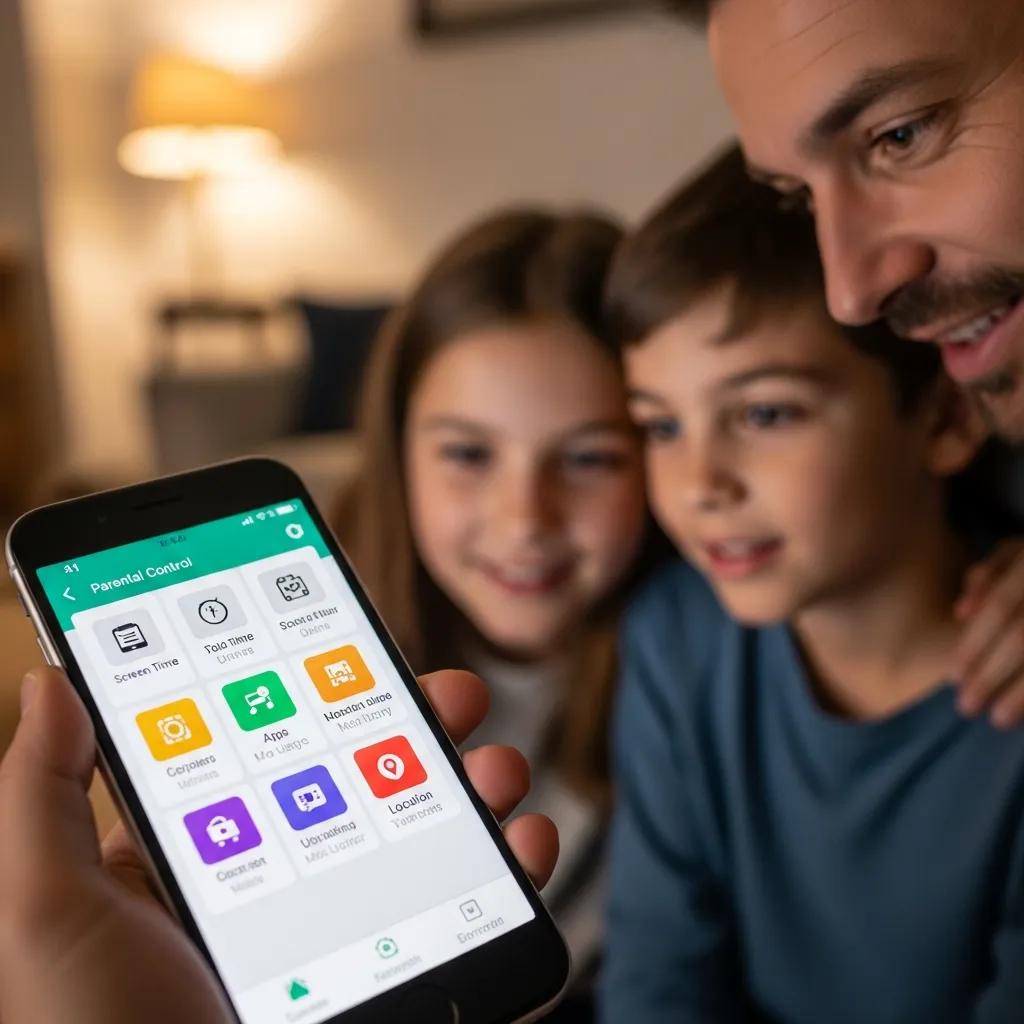
Keeping kids’ devices updated is crucial for ensuring their safety and enhancing their overall user experience. In this comprehensive guide, parents will learn the importance of software updates, how to perform them on various devices, and best practices for managing updates effectively. Many parents face challenges in keeping their children’s devices secure and up-to-date, which can expose them to potential cyber threats. This article will provide step-by-step instructions for updating software on popular devices, explore parental control tools, and discuss common issues that may arise during the update process. By the end, you’ll be equipped with the knowledge to keep your child’s devices secure and functioning optimally.
Want a clear, jargon‑free answer right now? Ask our free AI tech chatbot for UK parents about Roblox, TikTok, screen time and more in seconds – try it here.
Software updates are vital for maintaining the security and performance of kids’ devices. These updates not only fix bugs and improve functionality but also protect against vulnerabilities that could be exploited by cyber threats. Regular updates ensure that devices run smoothly and that children can enjoy the latest features and applications.
Updates play a critical role in enhancing digital safety by patching security vulnerabilities that could be exploited by hackers. For instance, operating system updates often include fixes for known security flaws, which can prevent malware attacks and unauthorised access to personal information. By keeping devices updated, parents can significantly reduce the risk of cyber threats that target children online.
Parents should be aware of several types of software updates that are essential for their children’s devices:
Understanding these types of updates helps parents make informed decisions about when and how to update their children’s devices.
Updating software on kids’ devices can vary depending on the operating system. Here are step-by-step instructions for the most popular devices.
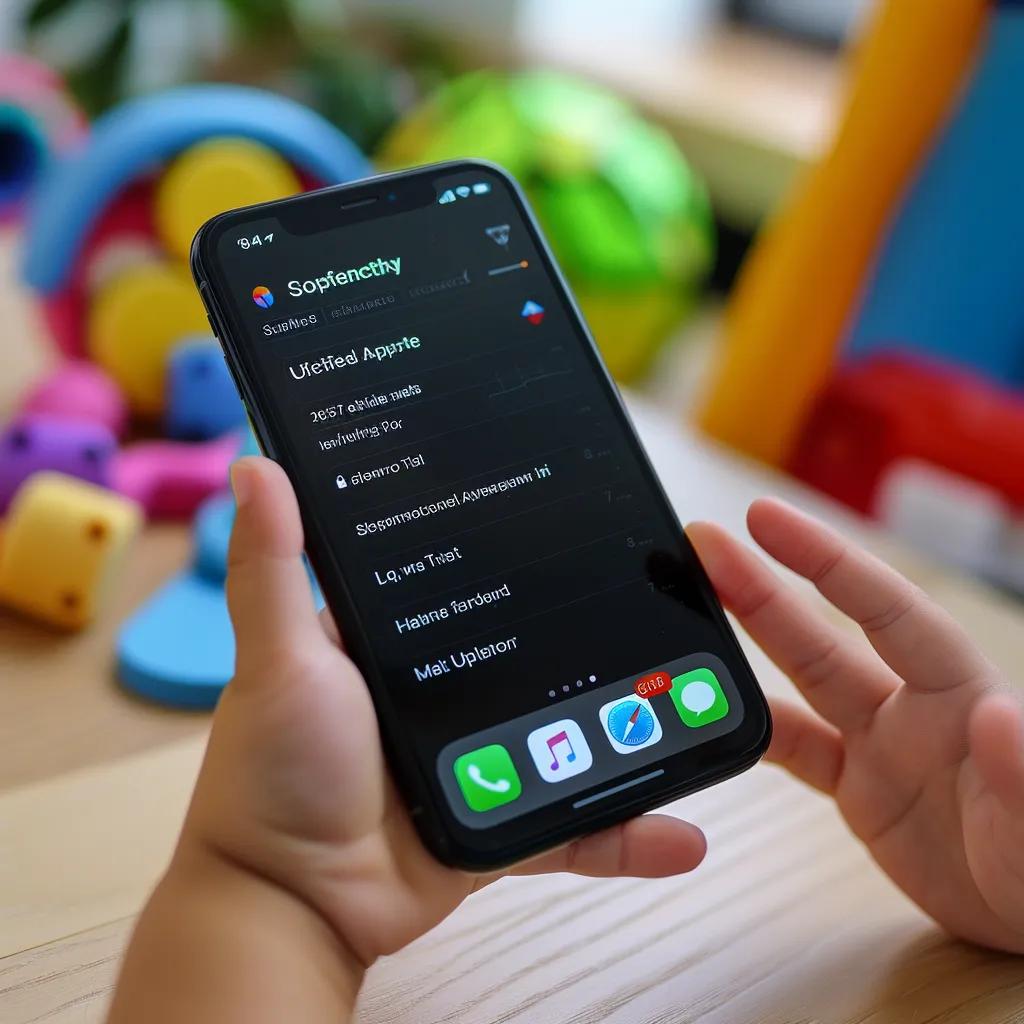
To update iPhone and iPad software, follow these steps:
This process ensures that the device is running the latest iOS or iPadOS version, which is crucial for security and performance.
To update Android devices, parents can follow these steps:
Keeping Android devices updated is essential for maintaining security and accessing new features.
Parental control tools can significantly assist parents in managing software updates on their children’s devices. These tools allow parents to set restrictions and permissions for app updates, ensuring that children only access appropriate content.
Child profiles can limit access to certain updates based on the restrictions set by parents. For example, if a child profile is configured to block app installations or updates, the child may not receive important updates for those apps. Parents should regularly review and adjust these settings to ensure that their children can benefit from necessary updates.

Updating devices can sometimes lead to common issues that parents should be prepared to address. Understanding these problems can help streamline the update process.
Storage issues can prevent updates from being installed. To resolve this, parents can:
These steps can help mitigate common storage and connectivity problems that arise during updates.
If a software update fails on a child profile, parents can take the following actions:
By following these troubleshooting steps, parents can effectively address issues that may arise during the update process.
To maintain the security of kids’ devices, parents should adopt best practices for managing software updates.
Enabling automatic updates ensures that devices receive the latest security patches without manual intervention. To enable this feature:
Verifying that automatic updates are enabled helps keep devices secure with minimal effort.
Downloading updates from trusted sources is crucial to avoid malware and security risks. Parents should ensure that updates are obtained directly from the device’s official app store (Apple App Store or Google Play Store) or the device manufacturer’s official update mechanism. This practice minimises the risk of exposing devices to harmful software that could compromise their children’s safety.
By following these guidelines, parents can effectively manage software updates on their children’s devices, ensuring they remain secure and up-to-date.
Want a clear, jargon‑free answer right now? Ask our free AI tech chatbot for UK parents about Roblox, TikTok, screen time and more in seconds – try it here.