
Chromebook vs Windows vs Mac: Which Laptop Is Right for Your UK Family?
Introduction: The Laptop Decision No Parent Wants to Get Wrong
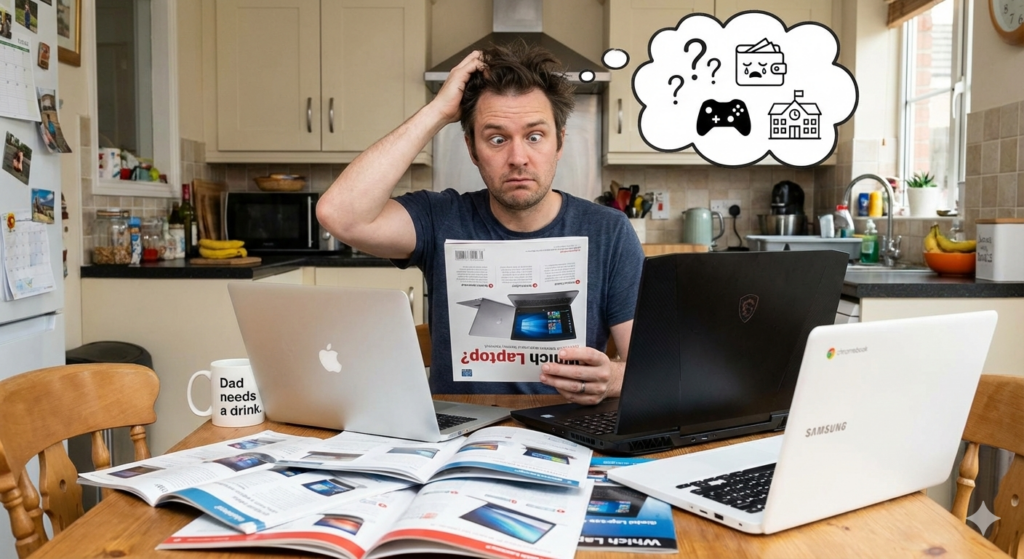
Your child needs a laptop. Maybe it’s for homework. Maybe secondary school is starting soon. Maybe they want to game, create content, or just have their own device. The problem is simple: you’re facing three operating systems, hundreds of choices, and marketing that makes all of them sound perfect.
Before you hand over any laptop, read our step‑by‑step online safety guide for UK parents so you know exactly which settings to switch on first.
Windows laptops are everywhere. Macs are sleek and premium. Chromebooks are cheap and “safe.” But which one actually fits your family’s life?
The honest answer: it depends on your child’s age, what they need to do, how tech-savvy you are, and how much you want to spend. This guide cuts through the noise and gives you the real story—advantages, drawbacks, parental controls, storage limits, everything.
By the end, you’ll know exactly which operating system suits your situation. No regrets on Boxing Day.
Want a clear, jargon‑free answer right now? Ask our free AI tech chatbot for UK parents about Roblox, TikTok, screen time and more in seconds – try it here.
Part 1: The Three Operating Systems Explained (For Parents)
Windows: The Familiar Workhorse
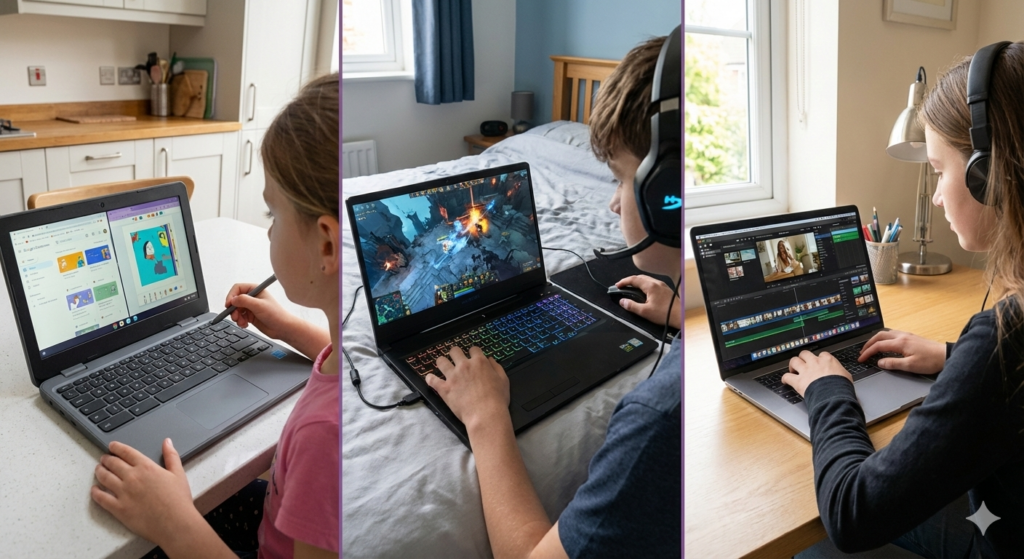
Windows is what most UK homes already use. It powers school computers, office PCs, and gaming rigs. If you use Windows at home, your child will recognise it immediately.
What Windows Does Well:
- Runs almost every piece of software: Microsoft Office, Adobe Creative Suite, educational software, coding tools, anything specialist your child’s school might require.
- Gaming: Windows is the go-to for PC games. If your child is into gaming, this matters.
- Flexibility: You can upgrade RAM, swap the hard drive, repair parts yourself (or take it to a technician). It’s hackable in the good sense.
- Familiarity: Chances are you already know how to use it, so troubleshooting is easier.
- Affordability: Windows laptops range from £300 budget models to £2,000+ premium machines. Choice for every budget.
Where Windows Falls Short:
- Updates can be painful and arrive at the worst time.
- More vulnerable to malware if the child (or you) clicks on suspicious links.
- Requires more parental configuration to lock down safely—it’s not simple out of the box.
- Battery life is often shorter than Mac or Chromebook equivalents.
- Can feel bloated with pre-installed software you don’t need.
macOS: The Premium, Creative Choice
Macs are pricier, but they come with a philosophy: fewer choices, better integration, focus on quality.
What Mac Does Well:
- Creative apps: If your child wants to edit video, create music, or do serious photo work, macOS is genuinely better. Final Cut Pro, Logic Pro, and Adobe suite all perform beautifully here.
- Ecosystem integration: If your family uses iPhones and iPads, a Mac feels like a natural extension. AirDrop, iCloud, Family Sharing—it all just works.
- Build quality and longevity: MacBooks last. You’ll still see 7–8-year-old MacBook Airs working fine, whereas Windows laptops often feel tired by year five.
- Privacy-first design: Apple’s approach to privacy and security is baked in. Screen Time is straightforward, and you’re not fighting constant telemetry.
- Fewer infections: Malware is less common on macOS, though not impossible.
Where Mac Falls Short:
- Price: The cheapest MacBook Air starts around £999. That’s a real barrier for many families.
- Software compatibility: Some school software, niche Windows applications, and many games don’t run on Mac. You’ll need workarounds.
- Less gaming support: Your child won’t be gaming seriously on a Mac.
- Repair costs: Apple repairs are expensive. Third-party repairs are limited.
- Overkill for basic tasks: If your child only needs to write essays and watch YouTube, you’re paying premium prices for features they don’t need.
ChromeOS: The Cloud-First Simplifier
Chromebooks run Google’s operating system. They’re built for the internet.
What Chromebook Does Well:
- Simplicity: Chromebooks are genuinely easy to set up and use. Almost nothing to configure.
- Speed: They boot fast, apps load quickly, and they feel snappy even with lower specs.
- Security: Because Chromebooks rely on the cloud and sandboxing, they’re very hard to infect with malware. Auto-updates mean you’re always patched.
- Cost: You can get a solid Chromebook for £200–400. That’s real money saved compared to Windows or Mac.
- Battery life: Chromebooks often outlast Windows laptops by hours.
- Google Family Link: Parental controls are free, powerful, and intuitive. See exactly what your child is doing, set screen time, approve apps, lock bedtimes.
- School-ready: Many UK schools now provide or accept Chromebooks. Google Classroom, Google Docs, Google Meet—all native and seamless.
Where Chromebook Falls Short:
- Storage: Chromebooks come with only 32–64GB of local storage. This sounds small because it is. The assumption is that everything lives in Google Drive in the cloud.
- Offline functionality: No internet = limited usefulness. Word processing, mail, files—all cloud-dependent.
- Software: Can’t run Windows or Mac desktop apps. No Photoshop, no gaming (unless streaming), no specialist software. If school requires specific Windows apps, Chromebook won’t work.
- Gaming: Not a gaming machine. Period.
- File management: Local files are secondary. If your child prefers to work offline or move files around, it feels clunky.
- Dependency on Google: Everything goes through Google’s ecosystem. If you want to avoid that, Chromebooks aren’t for you.
Part 2: Storage—Why It Matters (And Why Chromebooks Are Different)
This is where parents often get confused.
Windows & Mac Storage: You get a hard drive or SSD inside the laptop. 256GB, 512GB, or more. Files live locally on the device. You can unplug from the internet and still access everything. Storage is finite—once it’s full, it’s full (though you can plug in external drives).
Chromebook Storage: You get a small local drive (32–64GB), most of which is taken up by the operating system. The expectation is that your child stores everything in Google Drive (the cloud). Google gives 100GB free with a new Chromebook; after that, cloud storage costs money (£1.59/month for 100GB via Google One).
Why This Matters for Kids:
- Scenario 1 (Windows/Mac): Your child downloads videos, music, photos, projects—all stored locally. Device fills up. You have to delete things or buy an external drive.
- Scenario 2 (Chromebook): Your child stores work in Google Drive. As long as there’s internet, everything is accessible from any device. Run out of cloud space? Pay a small monthly fee or delete old projects. No hunting for files on the machine itself.
The Real Issue: Chromebooks assume your child has reliable internet. If broadband cuts out, or if they’re at a friend’s house with poor Wi-Fi, productivity stops. Windows and Mac don’t have that limitation.
For UK families with stable home internet, Chromebook storage is fine. For families without reliable connection, or children who work offline often, Windows or Mac is safer.
Part 3: Parental Controls—Which OS Lets You Stay in Charge?
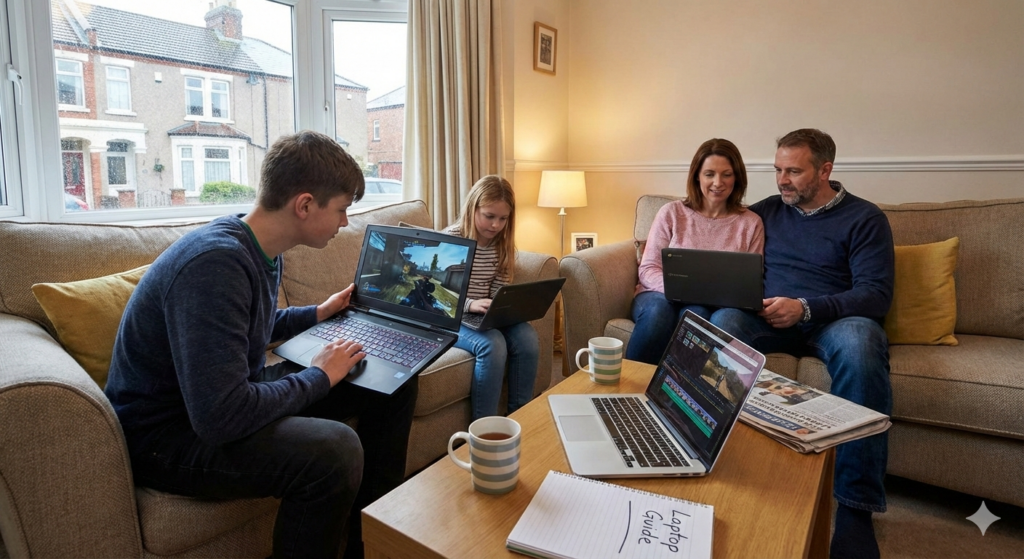
This is where things get serious. You need to be able to:
- See what your child is doing.
- Set screen time limits.
- Block inappropriate content.
- Approve app downloads.
- Lock devices at bedtime.
Google Family Link (Chromebook & Android)
Setup: Free. Create a supervised Google account for your child, set it up on the Chromebook or Android phone, then manage everything from your own phone or browser.
What You Can Control:
- App approvals: Your child can’t download from Google Play Store without your permission.
- Screen time: Set daily limits. Device locks automatically at bedtime.
- Content filtering: Block inappropriate websites and YouTube content.
- Location tracking: See where your child’s device is in real-time.
- Activity reports: See which apps they used, how long, what they searched.
Verdict: Google Family Link is genuinely excellent. It’s free, intuitive, and works reliably. If you choose Chromebook primarily for parental controls, this is a major reason why.
Apple Screen Time (Mac, iPhone, iPad)
Setup: Use Family Sharing to create a child account, enable Screen Time, manage from your own Apple device.
What You Can Control:
- App limits: Set time limits per app category (Social Media, Games, etc.).
- Downtime: Enforce “no phones” hours (bedtime, dinnertime, homework time).
- Content & Privacy: Filter web content, block explicit material, require parental approval for downloads and in-app purchases.
- Location sharing: See where your child is (if they have an iPhone).
- Ask to Buy: Requires parent approval before any purchase or download.
Verdict: Screen Time works, but it’s less polished than Family Link. Some parents report settings randomly resetting, and the interface for granting bonus time is clunky. If you’re already in the Apple ecosystem, it’s fine. If you’re choosing solely for parental controls, Google Family Link is better.
Windows Family Safety (Windows PC & Android)
Setup: Create a child Microsoft account, add it to your family group, manage via the Family Safety dashboard.
What You Can Control:
- Screen time limits: Set daily limits per device or per app. Sync across multiple Windows PCs.
- Content filtering: Block websites, enforce Safe Search, block adult content.
- App management: Approve/block downloads from Microsoft Store.
- Activity reports: Weekly email summaries of what your child used.
- Location tracking: See where Android devices are in real-time.
Verdict: Windows Family Safety is comprehensive but requires more setup than Google Family Link. If you’re on Windows anyway, it’s solid. Not a reason to choose Windows specifically for parental controls.
If parental controls are your top concern: Chromebook + Google Family Link. It’s the simplest, most reliable, and most complete solution.
Part 4: Practical Scenarios—Which OS for Which Child?
Scenario 1: Your Child Is 8–10 and Needs Their First Laptop
Use Case: Homework, some YouTube, school projects, learning to type, maybe a bit of coding via Scratch.
Best Choice: Chromebook
Why? Cost, simplicity, and safety. Chromebooks are hard to break, easy to lock down, and Google Family Link gives you total control. Your child learns the basics of computing without you worrying about malware or them accidentally downloading something nasty. If the device gets dropped or spilled on, you’re out £300, not £1,000+.
Specific model to consider: Acer Chromebook Spin 312—affordable, durable, touchscreen option, good for learning.
Scenario 2: Your Child Is 11–13, Starting Secondary School
Use Case: Homework, Google Workspace for school (Google Docs, Google Classroom), some YouTube, messaging apps, light gaming (Roblox-style).
Best Choice: Chromebook, unless their school requires specific Windows software
Why? Secondary schools increasingly adopt Google Workspace. Your child will be comfortable in Google Docs, Google Meet, and Google Classroom. Chromebook is purpose-built for this ecosystem. If the school uses Microsoft Office exclusively or requires specific Windows-only design software, you might need Windows instead—check with the school first.
If they game more seriously: Windows (if they play games) or Chromebook + cloud gaming (GeForce Now, Xbox Game Pass Cloud).
Scenario 3: Your Child Is 14–16, GCSE-Age, Wants to Game or Do Creative Work
Use Case: Homework (still Google Workspace mostly, but now some Office documents too), serious gaming, maybe video editing, coding side projects.
Best Choice: Windows
Why? GCSE-era kids often want gaming. Windows dominates PC gaming. You also need proper software—not everything is available on Chromebook, and macOS can be overkill (and expensive) unless your child is specifically into creative media.
Parental control consideration: Windows Family Safety is less intuitive than Family Link, and a 14-year-old will start pushing back on restrictions anyway. This is the age where you shift from “controlling what they see” to “teaching them to make smart choices.”
Scenario 4: Your Creative Child (Any Age) Wants to Make Videos or Music
Best Choice: Mac
Why? Final Cut Pro, Logic Pro, Adobe Creative Suite—all optimised for macOS. If serious video or music creation is the goal, Mac is worth the investment. Cheaper alternative: a Windows laptop with equivalent specs (might save £200–300) but the Mac experience is notably smoother for creative workflows.
Scenario 5: Your Family Is Mostly Google/Android, Wants Safety and Simplicity
Best Choice: Chromebook
Why? Google Family Link works seamlessly across Chromebook, Android phone, and Android tablet. Everything syncs. Location tracking, screen time, app approvals—all unified. If you’re already managing your child’s Android phone via Family Link, adding a Chromebook makes everything easier.
Scenario 6: Your Family Is All-Apple (iPhones, iPads, You Use a Mac)
Best Choice: Mac (though Chromebook is also fine)
Why? Ecosystem integration. AirDrop between devices, iCloud photos, Family Sharing—it’s seamless. That said, if budget is tight, a Chromebook still works; it’s just not as integrated.
Part 5: Real Costs—The Full Picture
Parents often look at the laptop price and forget everything else.
Chromebook: True Cost Over 4 Years
| Item | Cost | Notes |
| Device | £250–400 | Mid-range, durable model |
| Google One cloud storage | £19/year after free 100GB | Only if they need more than 100GB |
| Repairs/replacement | £0–400 | Less likely to break; easy to repair |
| Total | £326–476 | Very affordable |
Windows Laptop: True Cost Over 4 Years
| Item | Cost | Notes |
| Device | £400–800 | Mid-range model |
| Antivirus (optional but recommended) | £0–60/year | Many free options; some parents buy paid versions |
| Repairs/SSD upgrade | £0–300 | Hard drives can fail; may need replacement |
| External storage (if local drive fills up) | £40–100 | USB external drives or portable SSD |
| Total | £480–1,260 | Depends on luck and usage |
| Item | Cost | Notes |
| Device | £999–1,500 | Entry-level MacBook Air |
| AppleCare+ (optional but smart) | £79 + £99/incident | Protects against accidental damage |
| Repairs (if no AppleCare) | £0–800 | Can be pricey; battery replacement is common around year 3–4 |
| Total | £1,078–2,400 | Significant investment |
The cost lesson: Chromebook is genuinely cheap. Windows is mid-range. Mac is premium.
Part 6: Performance—What Actually Happens in Real Use?
Schoolwork (Google Docs, Microsoft Word, Research)
- Chromebook: Flawless. Google Docs is its native habitat. Lightning-fast for typing, editing, saving. Winner: Chromebook
- Windows: Also fine. Office Online in browser is decent; desktop Office is also excellent if installed.
- Mac: Excellent, but overkill.
Homework (Coding, Maths Software, STEM)
- Chromebook: Depends on the software. MIT’s Scratch (block-based coding) works perfectly. Replit (cloud coding) is great. But some school-specific STEM software might not work. Check compatibility first.
- Windows: Broadest compatibility. Runs almost everything. Winner: Windows
- Mac: Most stuff works, but some niche educational software might not.
- Chromebook: Not viable for serious work.
- Windows: Works, but entry-level Windows machines might struggle with large video files.
- Mac: Smoothest experience. Winner: Mac
- Chromebook: Not for gaming (unless cloud gaming via GeForce Now or Xbox Game Pass).
- Windows: Native gaming, full support, thousands of games. Winner: Windows
- Mac: Limited game support.
- Chromebook: 10–12 hours typical. Winner: Chromebook
- Windows: 6–8 hours typical.
- Mac: 12–15 hours (newer models). Comparable to Chromebook
Part 7: Security & Privacy—Beyond Parental Controls
Chromebook: Built-In Safety by Design
ChromeOS is fundamentally sandboxed. Each app runs in isolation. If one thing goes wrong, it doesn’t affect the rest of the system. Automatic updates mean security patches arrive constantly without user action. Malware is extremely rare on Chromebooks.
The Trade-Off: You’re trusting Google. Everything goes through Google’s servers. If privacy from Google is important, Chromebook isn’t ideal.
Windows: Security Depends on the User
Windows is secure if kept updated and if the child doesn’t click on phishing links or download suspicious files. Built-in Windows Defender is competent. Malware is possible but manageable with decent habits.
Setup Required: You need to configure updates, perhaps add antivirus, set up family controls.
Mac: Privacy-Forward, Secure by Default
macOS has strong built-in security. Notarisation (Apple reviews apps before they reach the App Store) means malware is rare. Privacy controls are straightforward.
The Trade-Off: You’re trusting Apple. System integration means Apple sees a lot of what you do (though they claim not to read content).
If you care about privacy from Big Tech: neither is perfect. Chromebook sends data to Google; Mac to Apple; Windows to Microsoft. If privacy is paramount, consider using your home Wi-Fi router’s parental controls in addition to OS-level controls (all three allow this).
For most families: Chromebook’s security is excellent for children because it’s hard to infect and updates automatically. Windows requires more vigilance. Mac is solid but pricey.
Part 8: The Awkward Truths (What Manufacturers Won’t Tell You)
Chromebook Limitation: Cloud Storage Isn’t Free Forever
The marketing says “100GB free storage!” What it doesn’t say: after that, you pay. If your child is storing large video projects or thousands of photos, costs add up. Also, if you’re a family with multiple Google accounts, the free 100GB is per account—it doesn’t pool.
Windows Reality: It Does Slow Down Over Time
Windows laptops often feel slower after a year or two. Hard drives fill up. Updates accumulate. This isn’t inevitable—it’s just common. Chromebooks stay snappy because they’re stateless; everything’s in the cloud.
Mac Truth: Repairs Are Expensive, and Apple Controls Everything
MacBook Air batteries degrade. Screen replacements are costly. You can’t easily upgrade RAM or storage. Apple’s “closed ecosystem” is brilliant for integration but annoying if something breaks. Budget for AppleCare+ if you buy a Mac.
Part 9: Setting Up Safely—Quick Checklist
Before You Hand Over the Device
- [ ] Create a supervised child account (not your own account)
- Chromebook: Use Google Family Link to create a managed account
- Windows: Use Family Safety to create a child Microsoft account
- Mac: Use Family Sharing to create a child Apple ID
- [ ] Set up parental controls on day one
- Set screen time limits (e.g., 1.5 hours on school days, 2 hours on weekends)
- Enable content filtering
- Set bedtime (device locks at 9pm, unlocks at 8am)
- Require app approval for downloads
- [ ] Explain the rules to your child before they ever touch it
- Frame it as “Our family rules” not “I don’t trust you”
- Be clear: this device is for school and reasonable personal use, not secret accounts or hidden browsing
- [ ] Enable location tracking (optional but useful)
- Chromebook/Android: Google Family Link tracks location
- Windows: Family Safety can track Android devices (Windows PC tracking is limited)
- Mac: Family Sharing tracks iPhone/iPad but not Mac itself
- [ ] Set up router-level controls (advanced but powerful)
- Your home Wi-Fi router can block categories of websites (adult content, gambling, etc.) for all devices on that network
- Many routers have bedtime features (device goes offline at 9pm automatically)
- This is your nuclear option; use it if OS-level controls aren’t enough
Part 10: Internal Linking Guide (For Your Site)
As you integrate this article into UnderstandTech, here are natural places to link to your other guides:
After “Setting Up Safely” section:
- Link to your “Setting up parental controls on iPhones and Android” guide when explaining smartphone parental controls
- Link to “Don’t share your account” article when warning about sharing Apple IDs or Google accounts (critical safety issue)
In the “Parental Controls” section:
- Link to “YouTube Kids vs YouTube” when discussing screen time and content safety (mention that a child’s first laptop often leads to “can I have regular YouTube now?” conversation)
- Link to “Keep your children safe online” guide for broader digital safety practices
In the “Gaming” sections (where you mention Windows gaming):
- Link to your “Family rules: chat guidelines for any online game” to cover multiplayer safety if they game on Windows
In the “School software” discussion:
- Link to “UK government AI skills hub” if mentioning UK school initiatives (natural tie-in if you expand on how schools are adopting digital tools)
In “First laptop age” scenario:
- Link to “iPhone or Android? Choosing the right device for family safety” to show device ecosystem choices matter long-term
General cross-linking opportunities:
- Create a “Device Comparison Table” page that links to individual OS guides (Mac vs PC, Chromebook vs Chromebook, etc.)
- Add “See also” boxes at the end linking to “Best tablets for kids’ learning needs” (similar audience, different decision)
- Link to your “Buying tech for the kids this Christmas” guide in seasonal sections
Conclusion: Your Decision Framework
Here’s the simplest way to choose:
Choose Chromebook if:
- Your child is 8–14
- They mainly do schoolwork, watch YouTube, use messaging apps
- You want parental controls that are free and easy
- You have decent home internet
- Budget matters
- You already use Android/Google services at home
Choose Windows if:
- Your child wants to game
- They need specific school software (check first)
- You want maximum software flexibility
- They’re 14+ and less interested in parental controls
- You’re already familiar with Windows
Choose Mac if:
- Your family is all-Apple already
- Your child is interested in creative work (video, music, design)
- Budget isn’t a concern
- You value privacy and ecosystem integration
- They’re 14+ and won’t be pushing back on parental controls
One final thought: The best laptop is the one your child will actually use for schoolwork and learning. If they resist it or feel resentful, it doesn’t matter how good the OS is. Involve them in the choice (within your parameters), explain why you’ve chosen it, and set clear expectations about what it’s for.
Still not sure if now is the right time to spend this much? Our kids’ tech gift guide can help you sense‑check your budget and timing.
[1] Google. Family Link: Family Management Tools. https://families.google/familylink/
[2] Apple. Family Sharing on Apple Devices. https://support.apple.com/en-us/105121
[3] Microsoft. Family Safety: Parental Controls & Screen Time. https://support.microsoft.com/en-us/family
[4] UK Which?. Chromebook vs Laptop: Which Is Right for You? January 2026. https://www.which.co.uk/reviews/laptops/
[5] Good Housekeeping UK. The Best Laptops for Kids, Teens and Students. November 2025. https://www.goodhousekeeping.com/uk/product-reviews/tech/g41090456/best-laptops-for-kids/
[6] TechRadar. Best Laptops for Kids. February 2026. https://www.techradar.com/news/best-laptops-for-kids
[7] PC Mag. The Best Chromebooks for Kids. February 2025. https://www.pcmag.com/picks/the-best-chromebooks-for-kids
[8] Reddit. If You Had to Choose ONE for College in 2026: Windows, Mac, or Chromebook. December 2025. https://www.reddit.com/r/LaptopForStudent/
[9] Impulsec. Microsoft Family Safety vs Google Family Link 2026. October 2025. https://impulsec.com/parental-control-software/microsoft-family-safety-vs-google-family-link/
[10] Tencent Cloud. What Are the Main Drawbacks of Chrome OS? February 2025. https://www.tencentcloud.com/techpedia/100810