How to Set Up Parental Controls on iPhones & Android Devices
A calm, comprehensive guide to managing screen time, limiting app access, and filtering content — using the built-in tools on your child’s device.
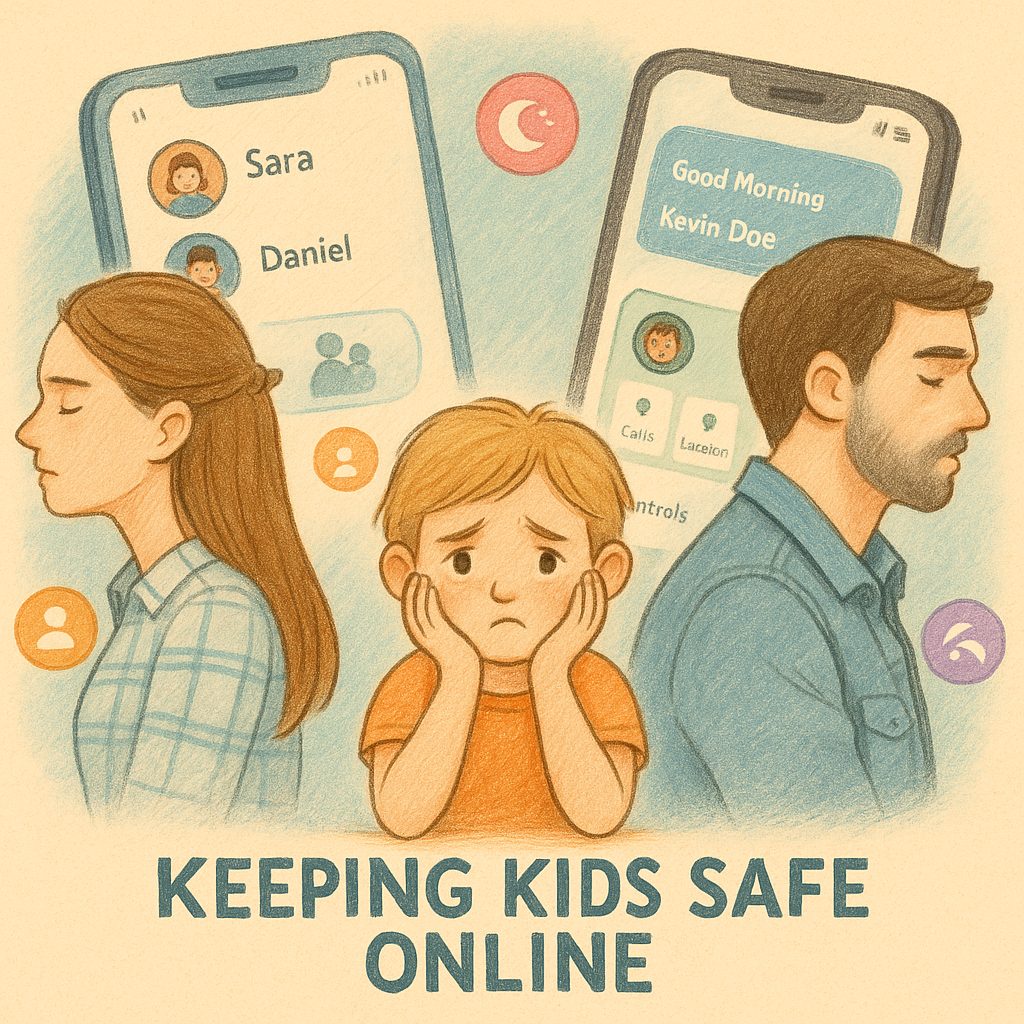
Short answer: Turn on Apple Screen Time (for iOS/iPad) or Google Family Link (for Android), agree on rules together first — like bedtime, app limits, and content filters — and let the settings work quietly in the background while you check in regularly.
Modern smartphones are powerful tools for learning and connection, but without guardrails, they can expose children to unlimited content, in-app purchases, and addictive app usage patterns. The good news: both Apple and Google have built robust parental control systems directly into iOS and Android. You don’t need expensive third-party apps for basic protection — these free, native tools are often more effective.
Why Parental Controls Matter (And How to Use Them Wisely)
Children’s brains are still developing impulse control and risk assessment — that’s not laziness, it’s neuroscience. Without friction, it’s easy for a quick game to become two hours, or for a child to accidentally install a game with hidden in-app purchases. Parental control tools add that friction in a fair, transparent way.
The most effective parental control strategy combines:
- Clear, agreed rules — set boundaries together so your child understands the reasoning
- Built-in device limits — Screen Time or Family Link enforces rules automatically
- Content filters — blocking inappropriate websites, apps, and media
- App approval workflows — requiring your permission before new apps can be installed
- Regular check-ins — monthly conversations about what they’re using
Before You Begin: Important Setup Steps
📱 Setting Up Apple Screen Time (iOS & iPad)
Apple Screen Time is a powerful parental control tool built into iOS 12 and later. It lets you set app limits, restrict content, manage purchases, and enforce downtime automatically.
Step 1: Turn on Screen Time and Choose the Device Type
- On your child’s iPhone or iPad, open Settings
- Tap Screen Time
- Tap Turn On Screen Time
- Select This is My Child’s iPhone/iPad
This tells Apple that you’re setting up parental controls for a supervised child, giving you full management capabilities.
Step 2: Create a Screen Time Passcode
- Choose a 4-digit or longer code — different from the device lock passcode
- Write it down somewhere safe but away from your child
- Confirm the passcode by entering it again
- Set up recovery options (email or security questions) in case you forget it
The Screen Time passcode protects your parental settings from being changed. Without it, your child could disable app limits or remove downtime restrictions.
Step 3: Set Downtime (Scheduled Device Lockdown)
Downtime temporarily disables most apps during times you specify, like bedtime or school hours.
- In Screen Time settings, tap Downtime
- Toggle Downtime ON
- Set a start time (e.g., 8:00 PM) and an end time (e.g., 7:00 AM)
- You can also set a second downtime window for school hours if needed
During Downtime, only calls, Messages, and Health apps remain available. Your child can manually request more time, and you’ll receive a notification. This teaches responsibility while maintaining boundaries.
Step 4: Set App Limits (Time Caps by Category)
App Limits let you cap daily usage for specific categories — like Games, Social Media, or Entertainment.
- In Screen Time settings, tap App Limits
- Tap Add Limit
- Select app categories (Games, Social Networking, Entertainment)
- Set a daily time limit (e.g., 1 hour for Games)
- Choose which days this limit applies
When the limit is reached, apps become blurred and require the Screen Time passcode to extend usage. This creates a natural pause point for conscious decision-making.
Step 5: Enable Content and Privacy Restrictions
Content and Privacy Restrictions are your main tool for filtering inappropriate content.
- In Screen Time settings, tap Content & Privacy Restrictions
- Toggle it ON
- Enter your Screen Time passcode
- Configure each section (see details below)
What You Can Restrict:
- iTunes & App Store Purchases: Set to Don’t Allow or Always Require Approval to prevent in-app purchases without permission
- Allowed Apps: Toggle off specific apps like Camera, FaceTime, or Safari
- Content Ratings: Set allowed ratings for apps, movies, books, and music based on your child’s age (12+, 16+, 17+)
- Web Content: Choose Restricted to filter adult websites or create “Always Allow” and “Never Allow” lists
- Siri & Search: Disable Siri suggestions and web search if desired
Step 6: Set Communication Limits (Who They Can Contact)
- In Screen Time settings, tap Communication Limits
- Choose contacts your child can reach during Downtime (e.g., family only)
- Set separate limits for allowed screen time (usually less restrictive)
Step 7: Customize “Always Allowed” Apps
- In Screen Time settings, find Always Allowed
- Include essentials: Phone, Messages, Maps, Health
- Remove tempting apps like Games, YouTube, or Social Media from this list
💡 Pro Tip: Check in monthly with your child about how the limits are working. Ask if any rules need adjusting. A child who feels heard is more cooperative than one who feels controlled.
🤖 Setting Up Google Family Link (Android)
Google Family Link is Google’s parental control solution for Android devices. It’s a free app that syncs between your parent phone and your child’s Android phone or tablet, giving you remote control over app approvals, screen time, and content filtering.
Step 1: Install Google Family Link on Both Devices
- On your own phone or tablet (parent device), open Google Play Store
- Search for “Google Family Link” and install it
- On your child’s Android device, install the same app
- Make sure both devices are connected to the same Wi-Fi network during initial setup
Family Link works on Android 7.0 and later. Older devices may need updating or a new device may be necessary.
Step 2: Link Your Accounts (Parent and Child)
- On your device (parent), open the Family Link app
- Tap Create a Family Group or Invite Family Members
- Create a Google account for your child if they don’t have one
- Once linked, you’ll receive a pairing code
- On your child’s device, open Family Link and enter the pairing code
The pairing code ensures only you can link to your child’s device. Full parental oversight appears in the Family Link app on your phone.
Step 3: Set Daily Screen Time Limits
- In Family Link app on your phone, tap your child’s device
- Tap Screen Time or App Activity
- Set a Daily Limit (e.g., 2 hours per day)
- Choose which days this limit applies
- When the limit is reached, the device locks automatically
Step 4: Set Bedtime (Automatic Device Lockdown)
- In Family Link, tap Bedtime or Downtime
- Toggle it ON
- Set a start time (e.g., 9:00 PM) and end time (e.g., 6:00 AM)
- During bedtime, the device is locked and can only be used for calls and messages
Step 5: Require App Authorization Before Installation
- In Family Link, tap your child’s device name
- Go to App Management or Apps
- Toggle Require Approval to Install Apps ON
- Now you’ll receive notifications for every app your child tries to download
This powerful feature prevents your child from installing games with aggressive ads, hidden purchases, or inappropriate content without your knowledge.
Step 6: Set Content Filters and SafeSearch
- In Family Link, go to Content Settings or Filters
- Enable Google Play Content Filter
- Choose a content rating: All Ages, 9+, 12+, 16+, or 18+
- Enable SafeSearch to filter explicit results from Google Search, YouTube, and Google Images
Step 7: Monitor Location (Optional)
- In Family Link, you can view your child’s device location if enabled
- On your child’s device, go to Settings → Location and turn it ON
- Then in Family Link, toggle Location ON
- Be transparent: Explain why you’re using it (safety, pickup confirmations)
🎯 Real Talk: Transparency about location tracking matters. Explain the “why” to your child. They’re more likely to accept it when they understand it’s about their safety, not surveillance.
⚖️ Apple Screen Time vs. Google Family Link
| Feature |
Apple Screen Time (iOS/iPad) |
Google Family Link (Android) |
| Downtime / Bedtime |
✓ Scheduled device lockdown |
✓ Scheduled device lockdown |
| App Limits by Category |
✓ Cap usage for Games, Social Media, etc. |
✓ Overall daily limits; individual app limits in newer versions |
| Content Filtering |
✓ Detailed Content & Privacy Restrictions |
✓ Play Store filter + SafeSearch |
| App Approval Before Install |
⚠ In-app purchase approval only |
✓ Full app authorization workflow |
| Location Tracking |
✓ Via Find My (with Family Sharing setup) |
✓ Built into Family Link |
| Remote Device Lock |
⚠ Not directly available |
✓ Lock device remotely any time |
| Cost |
Free (built into iOS) |
Free (built into Android) |
Which Should You Choose?
- If you have iPhone/iPad: Apple Screen Time offers strong, integrated parental controls. The detailed Content & Privacy Restrictions are unmatched.
- If you have Android: Google Family Link is comprehensive and particularly strong at requiring app approval before installation — a critical feature.
- If you have both: Use both systems. They work independently and are equally effective.
Common Parental Control Mistakes to Avoid
Mistake 1: Setting Controls Without Explaining Why
If your child wakes up to find their device locked at 8 PM with no warning, they’ll feel betrayed and try to circumvent it. Instead, explain the reasoning: “We’re setting bedtime at 8 PM so you can get good sleep. Studies show that screen light before bed makes it harder to fall asleep.” A child who understands the reason accepts the boundary more readily.
Mistake 2: Making the Passcode Too Easy to Guess
Avoid obvious passcodes like 1234, 0000, or your child’s birthdate. Use a random 4+ digit code. Write it down somewhere physically safe (not in Notes). If you lose it, you can use recovery options or contact Apple/Google support.
Mistake 3: Being Overly Restrictive Too Fast
If you set a 30-minute daily limit for a child used to unlimited access, they’ll immediately try to circumvent it. Start with reasonable limits, adjust gradually, and check in about their needs. A teen who can negotiate will be more cooperative.
Mistake 4: Ignoring the “Request More Time” Notification
Both platforms notify you when your child requests extra screen time. If you ignore all requests, they lose trust. Occasionally approving a request teaches them that rules are negotiable and you’re listening.
Mistake 5: Never Revisiting the Settings
As your child grows, so should their independence. A 9-year-old’s limits differ greatly from a 15-year-old’s. Every 6 months, review together: What’s changed? Can any limits be relaxed? This shows controls aren’t permanent punishment.
Troubleshooting Common Issues
Balancing Control with Trust and Independence
Parental controls are tools, not substitutes for communication. They work best when paired with trust and transparency.
- Involve your child in rule-setting. Ask: “How much screen time do you think is fair on school nights?” A child who helps set rules is more likely to follow them.
- Check in regularly. Monthly conversations about their app usage, who they’re chatting with, and what they’re enjoying are far more effective than controls alone.
- Adjust as they grow. A 10-year-old needs strict limits; a 16-year-old needs more freedom to learn self-regulation. Slowly loosen controls as they demonstrate responsibility.
- Model healthy device habits. If you’re on your phone constantly, no control setting will convince your child to limit theirs.
- Use “mistakes” as learning opportunities. If your child finds a workaround, ask why they tried it. What did they want? How can you work together on a solution?
Family Guideline to Discuss Together:“Parental controls help us all use devices in ways that are good for our health and family time. They’re not about not trusting you — they’re about building good habits together. When you show responsibility, we can adjust the rules together.”
Quick Reference: Which Age Gets Which Limits?
| Age Group |
Recommended Setup |
| 6–9 years |
Strict limits on Screen Time/Family Link + aggressive content filtering. Consider device-free zones (bedrooms, meals). |
| 10–12 years |
Moderate limits with app approval required. Regular check-ins. Begin teaching self-regulation. |
| 13–15 years |
Lighter screen time restrictions; maintain content filtering and app approval. Focus on conversations about online risks. |
| 16+ |
Minimal restrictions (show trust); keep communication open. Location sharing only if agreed mutually. |